GDN
GDN Project
Purpose: This document is a developer-focused handover for the GDN project. It describes repositories, architecture, data model, business workflows, portal behaviors, key functions, setup & deployment notes, known issues, and a prioritized TODO list for next developers.
1. Repositories (phase & purpose)
Phase 1 — Backend + Applicant portal (main app)
https://labs.extensionerp.com/dhairya/gdn.git— Backend app (GDN custom Frappe app / doctypes / business logic)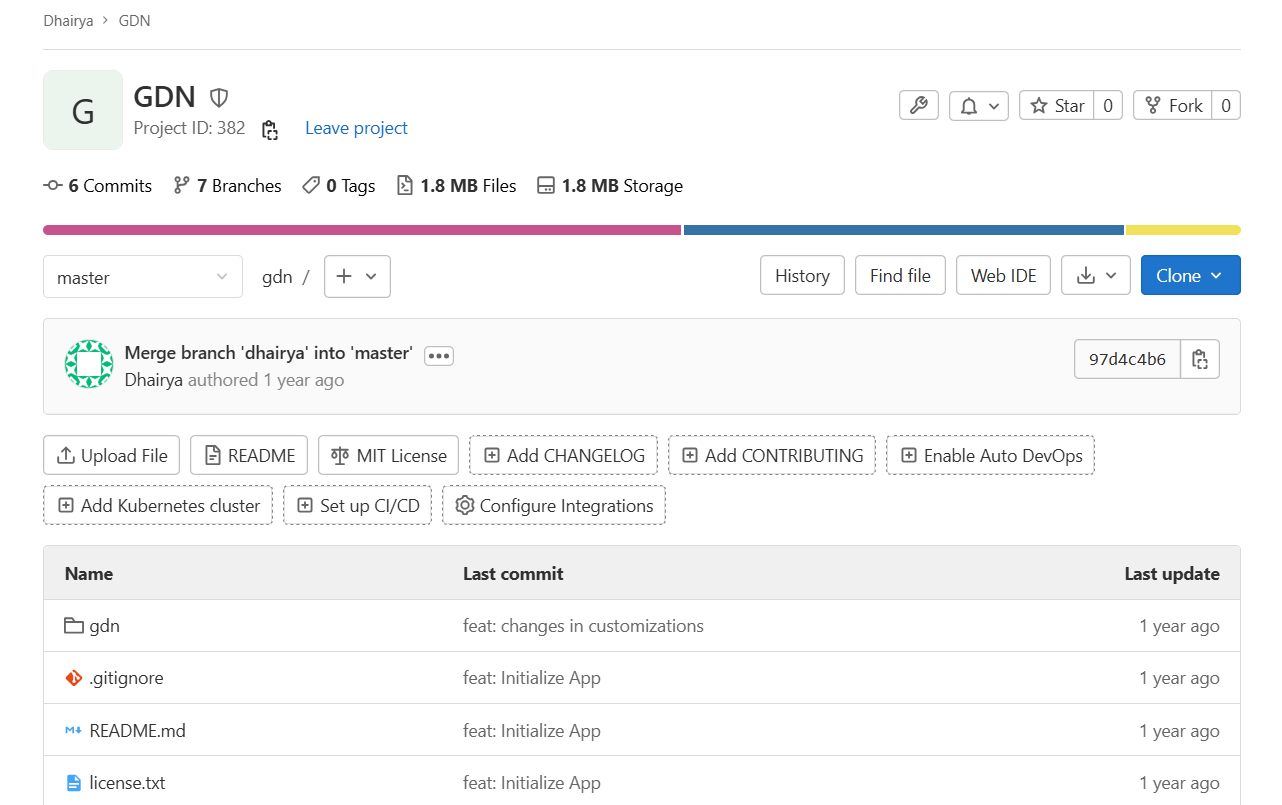
Phase 2 — Grantee portal
https://labs.extensionerp.com/hashib/gdn-grantee-portal.git— Grantee-facing portal (application, drafts, contract upload, view grant)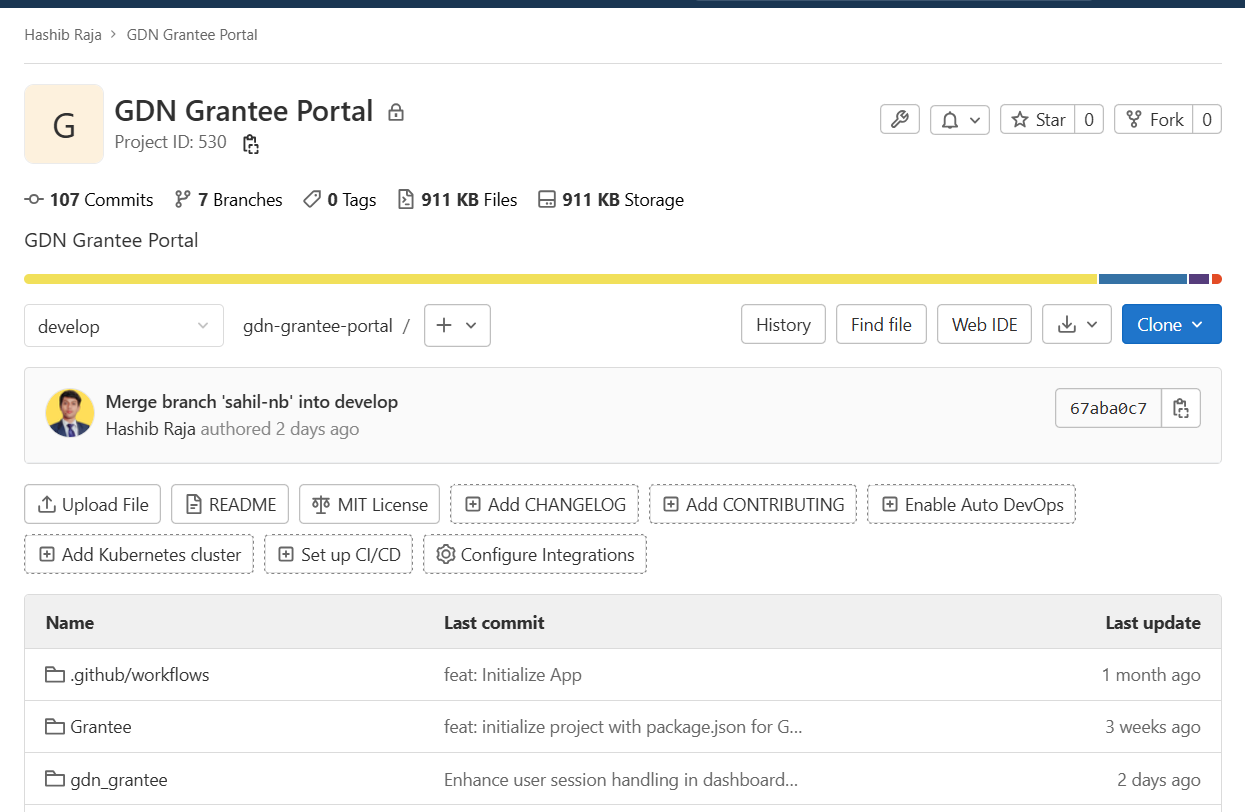
Recommendation: Clone all three repos locally with matching branches. Confirm branch naming conventions and review READMEs per repo.
2. High-level architecture
Framework: Custom app built on top of Frappe/ERPNext (custom doctypes, server-side hooks, portal views). Frontends are portal apps (Vite/React or Frappe portal templates) communicating with the backend via built-in routes/REST.
Base currency: USD (system base). Multi-currency support implemented via conversion functions and automatic exchange gain/loss journal entries.
Primary actors: Project Lead, Reviewer, Finance Team, Grantee, Admin.
3. Key doctypes & relationships (logical model)
Use these names as starting points for code search. Field names used in UI:
project_name,custom_project_lead,custom_type_of_project,status,expected_start_date,expected_end_date,custom_currency.
Project
Fields: project_name, project_lead (email), project_lead_name, type_of_project, status, expected_start_date, expected_end_date, currency
Relations: Has many
Activity(generated fromActivity Template).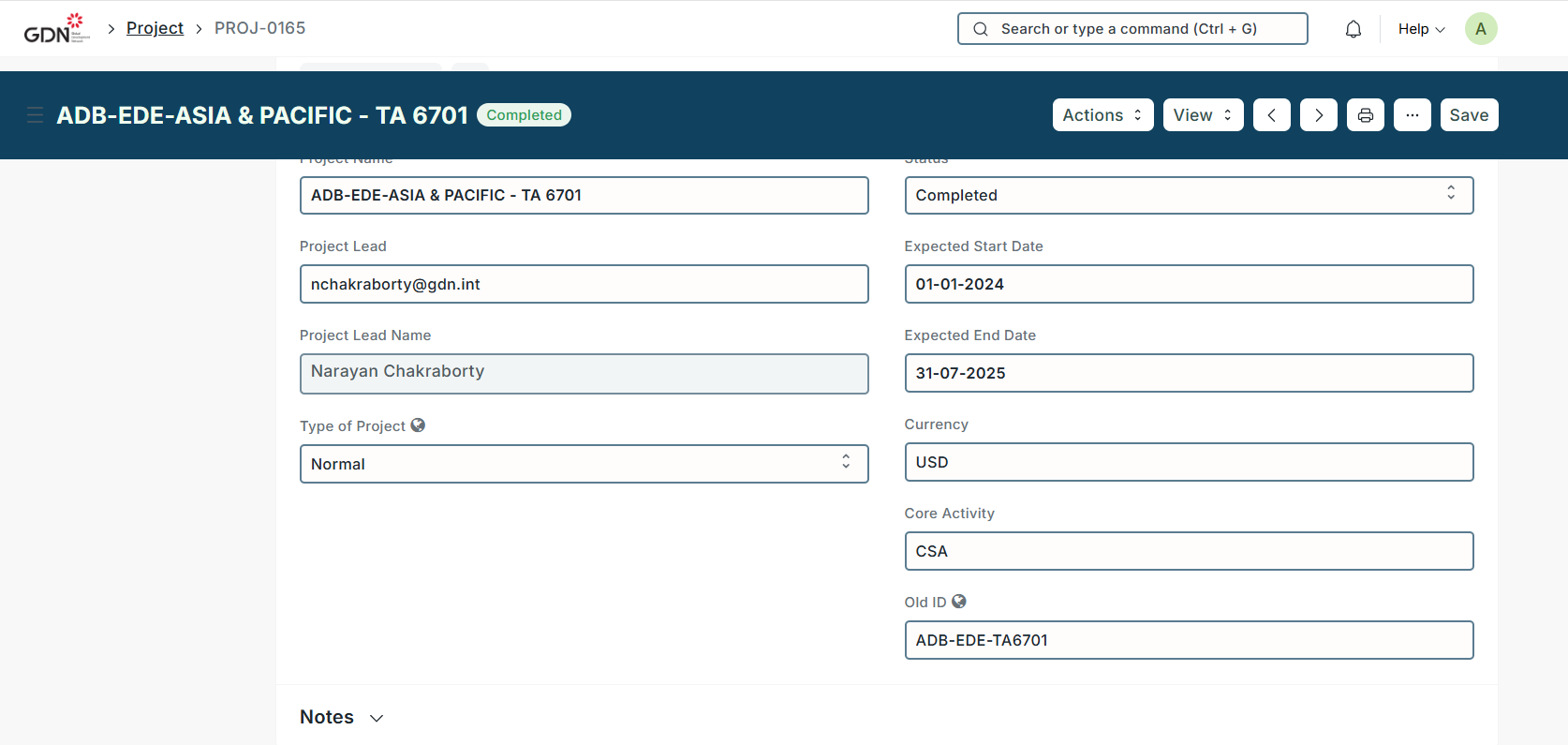
ActivityTemplate (template of activities that many projects reuse)
Contains activity kinds (HR, IT, Finance, etc.) and default month coverage.
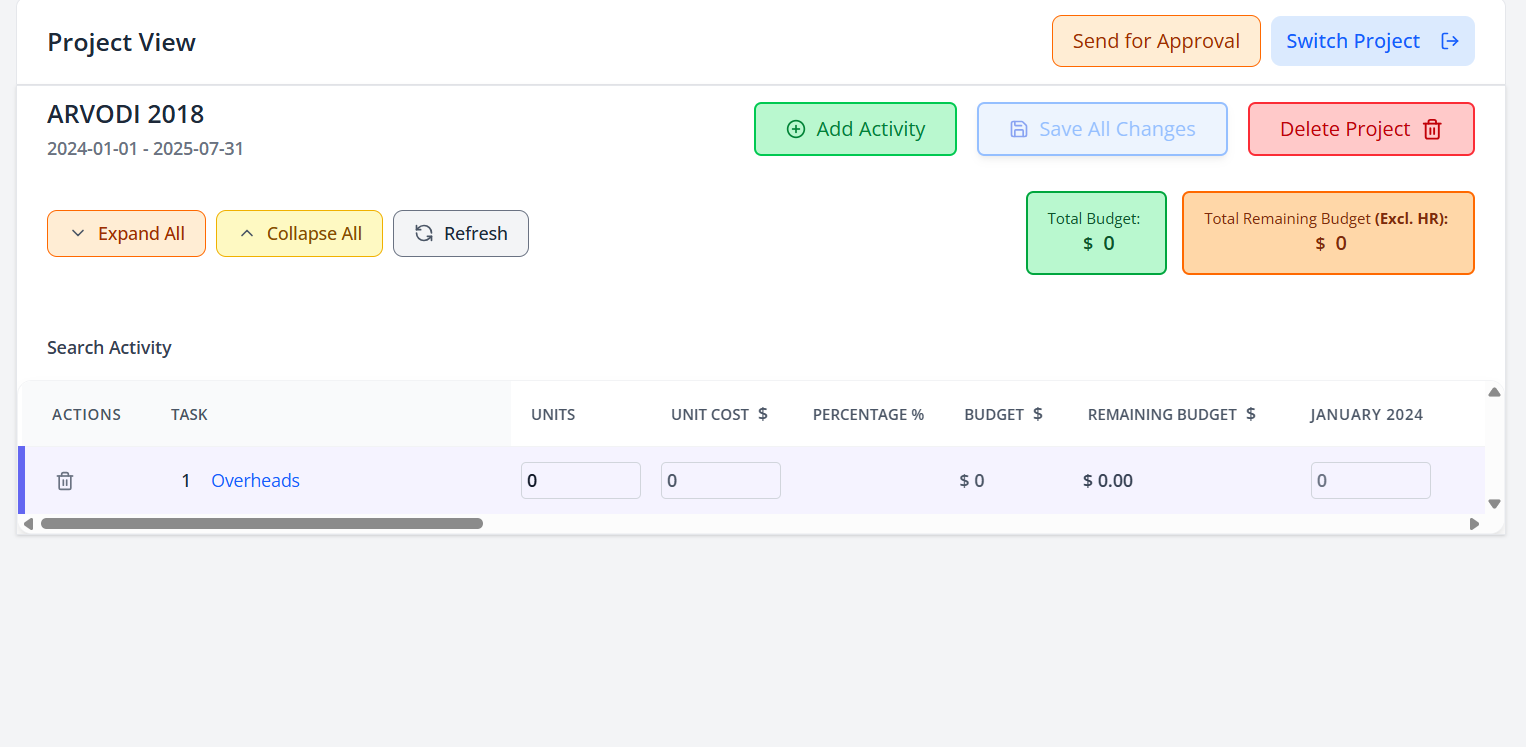
Activity
Generated from template. Contains monthly budget breakdown (month -> budget). Start/end dates derive which months apply.
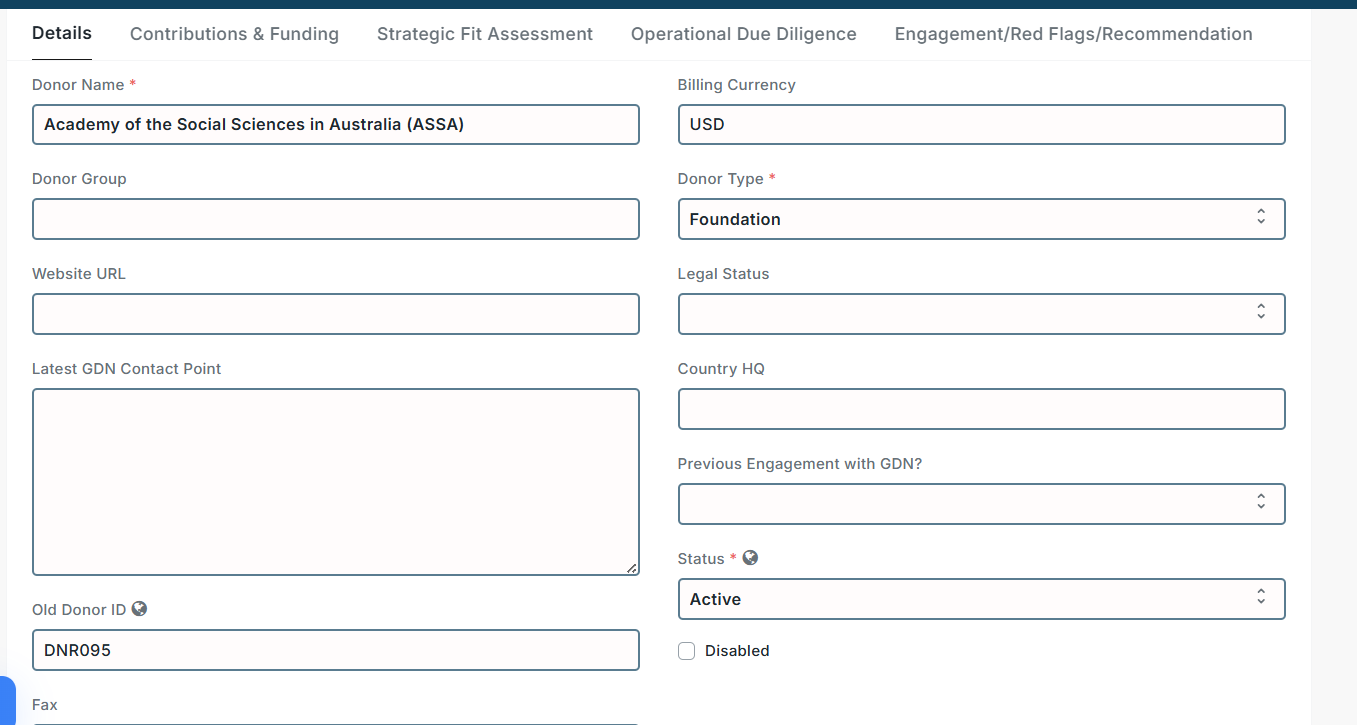
Donor
Donor master data: name, currency, contact, default terms.
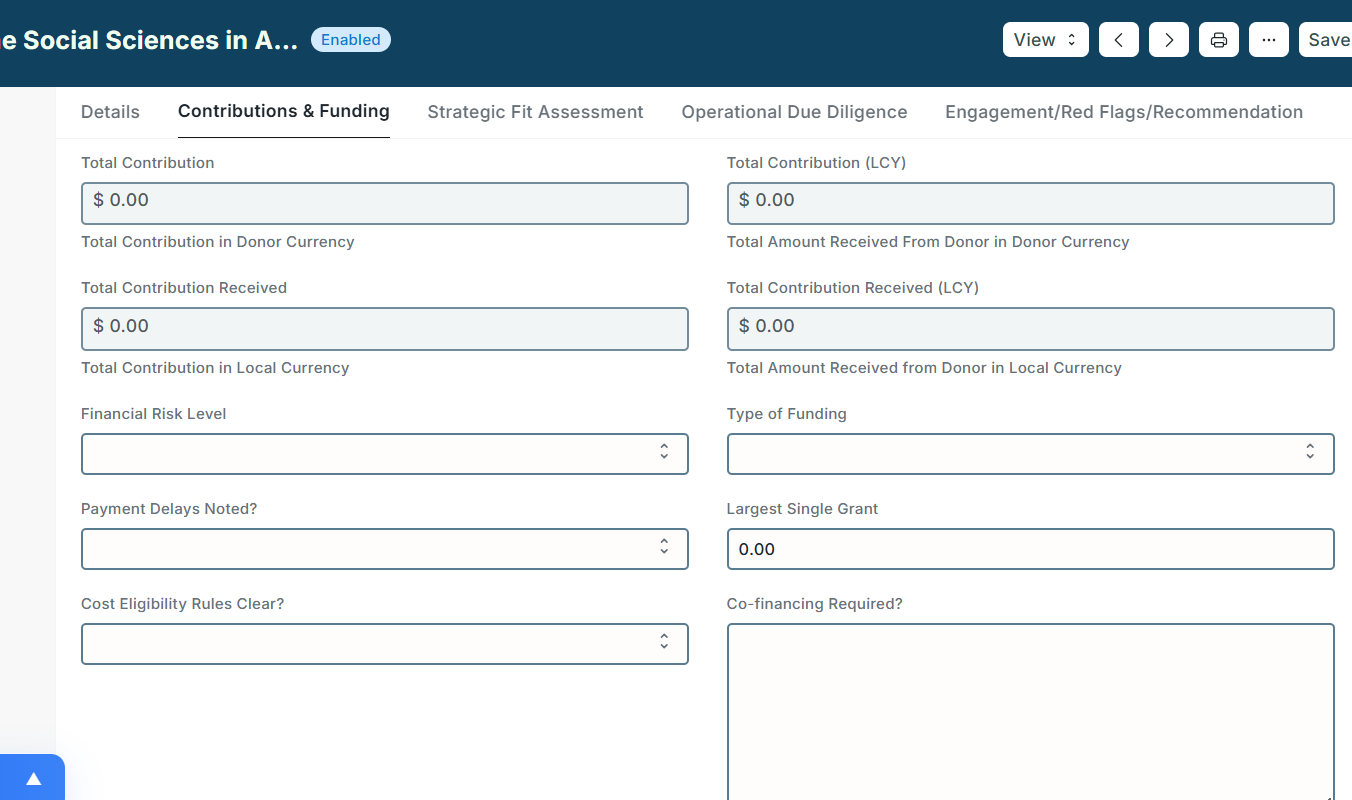
Fund (custom doctype)
Captures total committed fund from donor for a project or activity.
Fields: total_amount, currency, conversion_rate (to USD), donor, funding_detail
Not a financial record. Finance team creates Journal Entries to convert to accounting records.
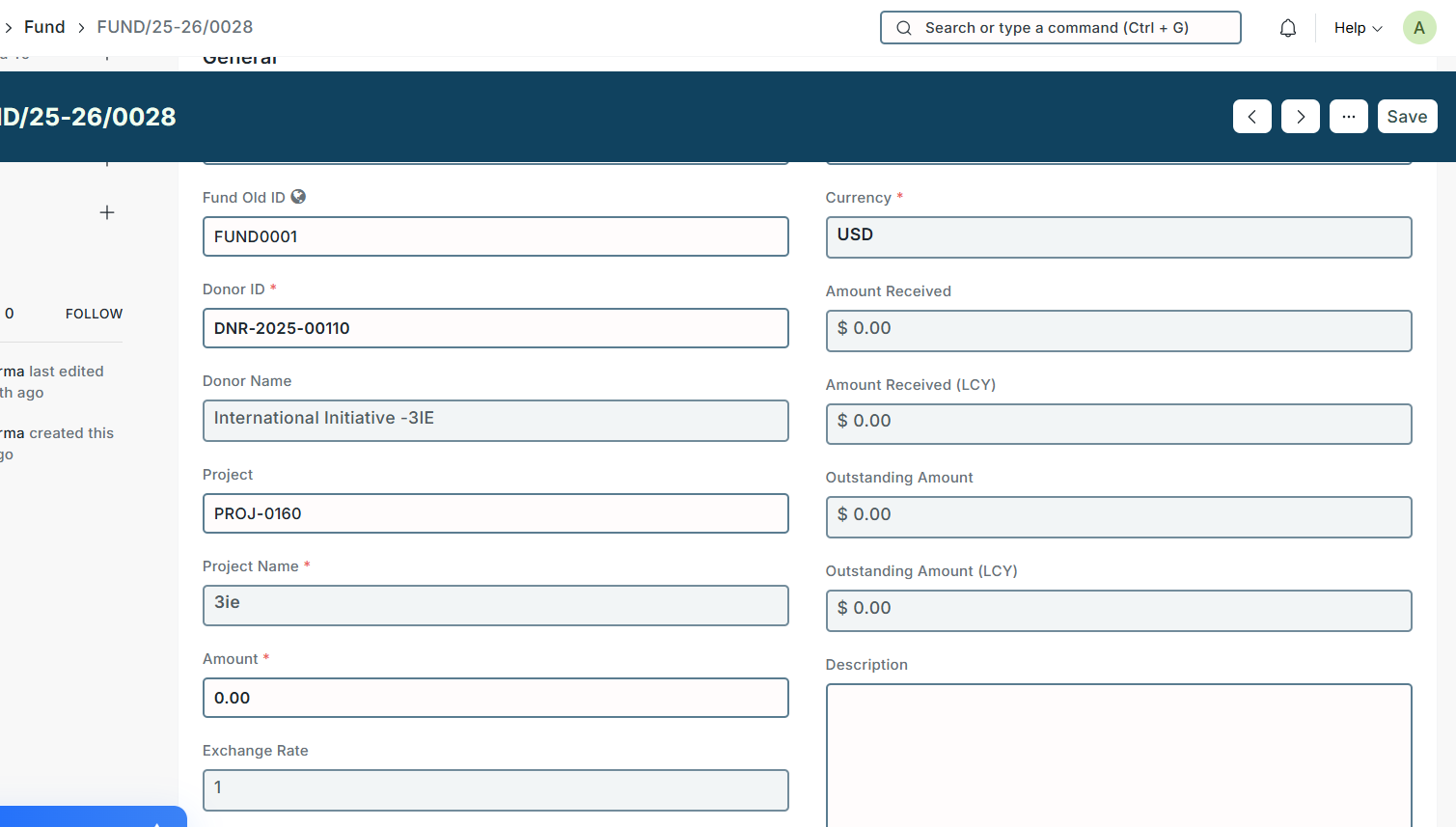
FundTerm / Tranche
Each fund can be split into tranches: name, portion (percentage or absolute), scheduled_date, term_amount, paid_amount, balance_amount.
UI provides
Record Paymentbutton to create a Payment Entry (redirect prefilled).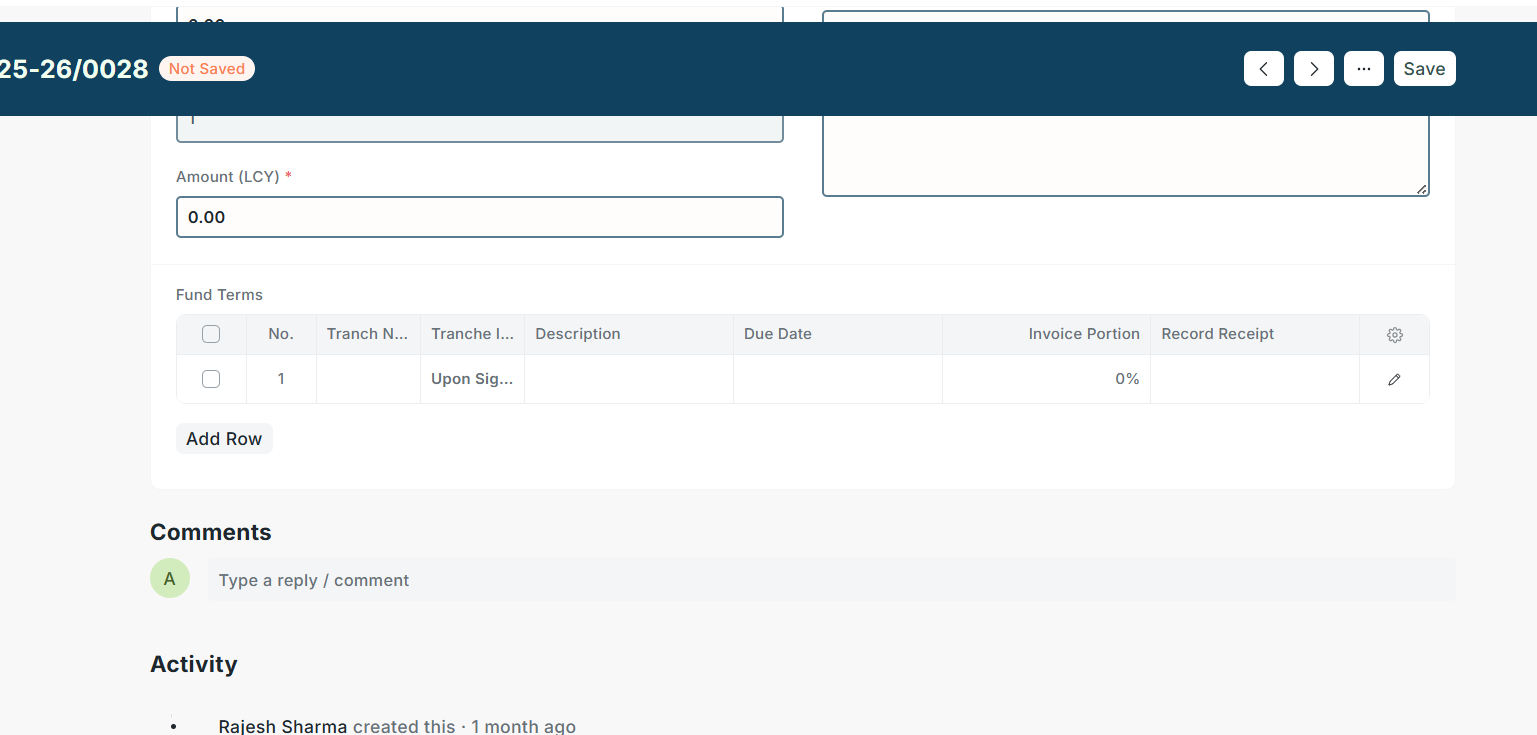
Journal Entry
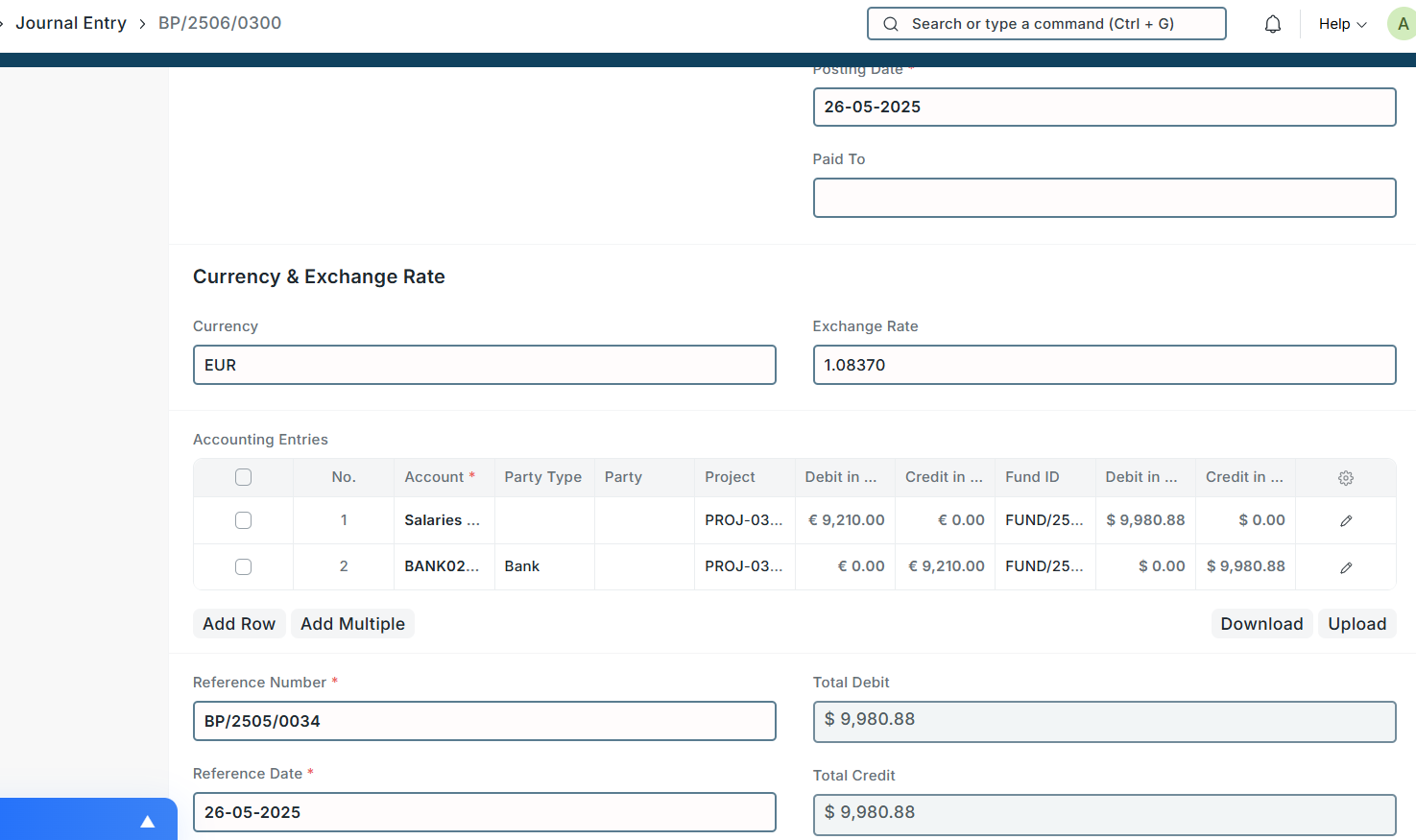
Accounting object used by finance. Multi-currency behavior: each JE line supports foreign currency and auto-generated exchange gain/loss lines.
Payment Entry
Records actual receipts/payments. Handles currency conversion; triggers exchange gain/loss JE generation if conversion differences exist.

Grantee
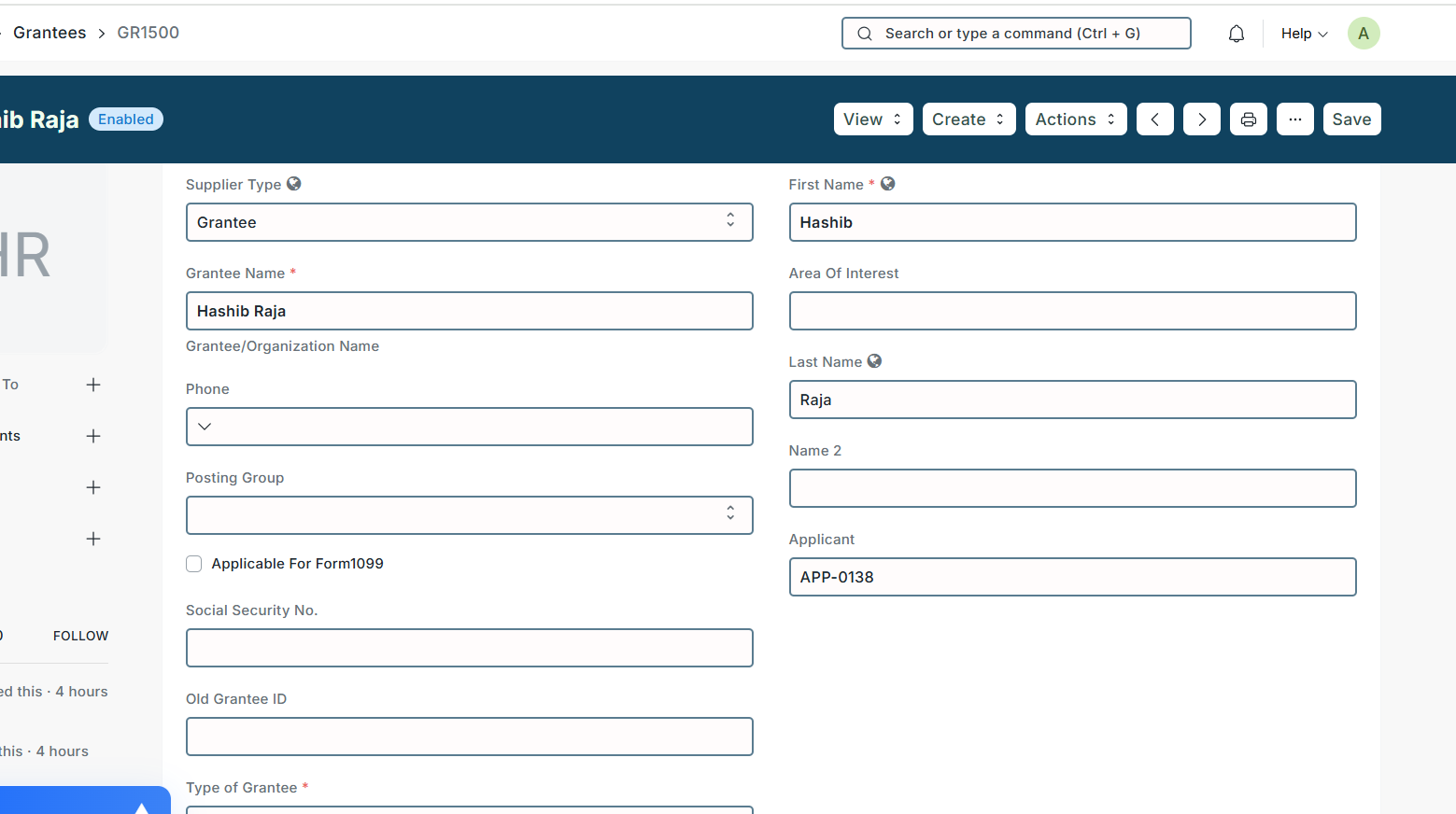
Grantee master with contact person(s), bank details (captured in profile), profile status.
Application
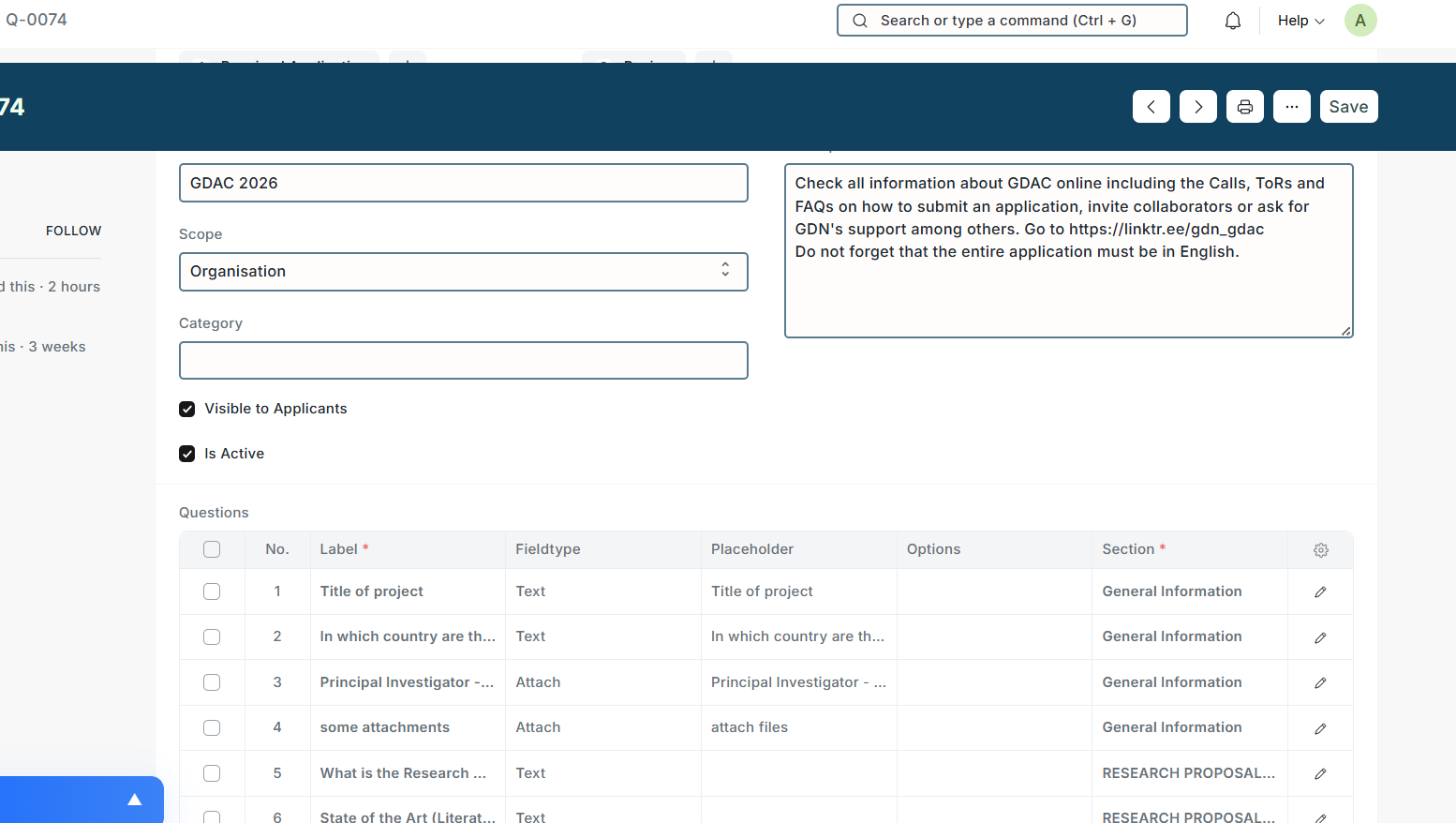
Dynamic form generated from a project-level application template. Stages: draft, submitted, shortlisted, rejected, etc.
When submitted, application locks (no edit for grantee). Certain stages allow editing.
Reviewer / Review
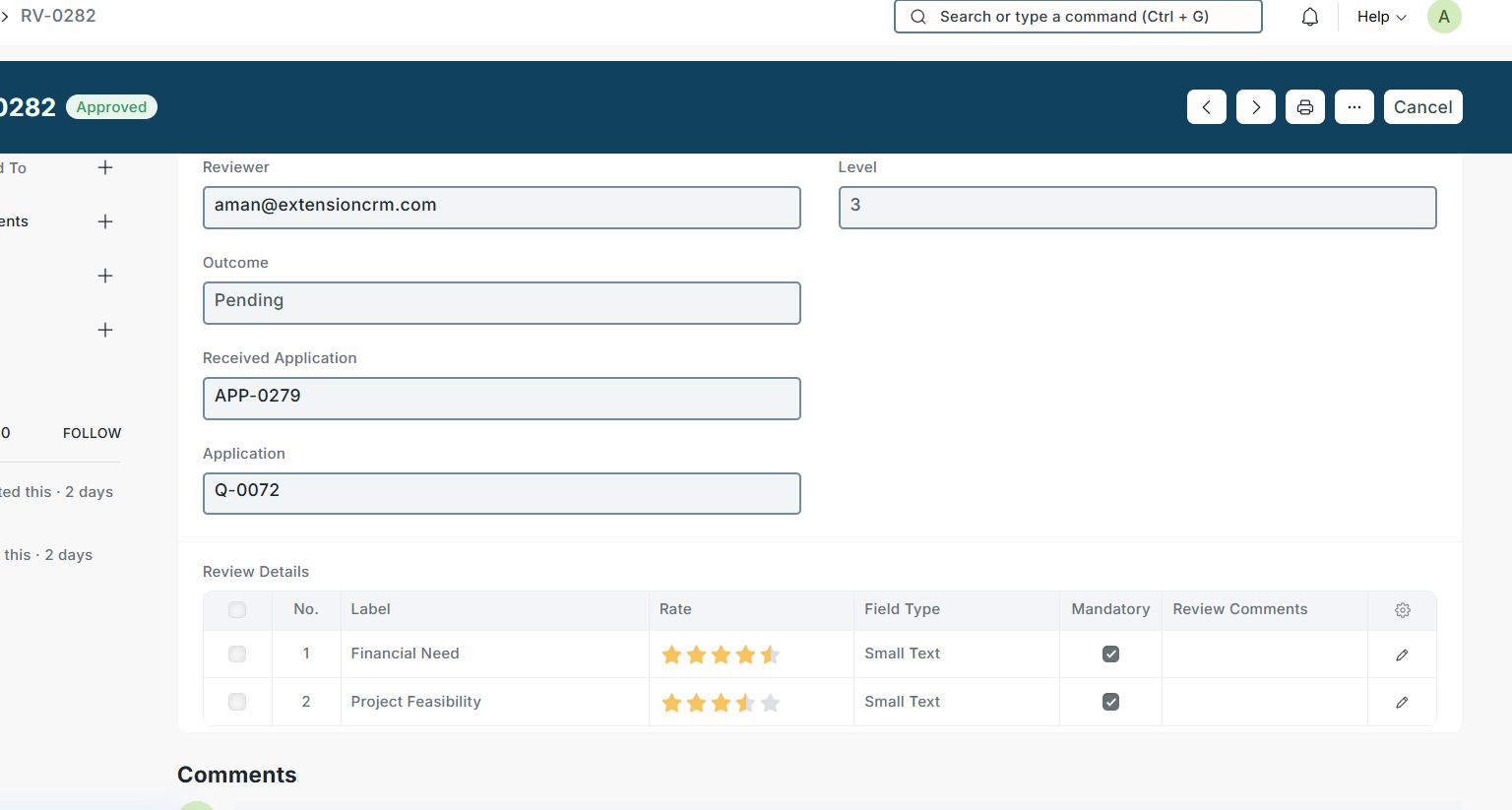
Reviewer role assigned by Project Lead. Reviewer can view assigned applications and add comments & ratings.
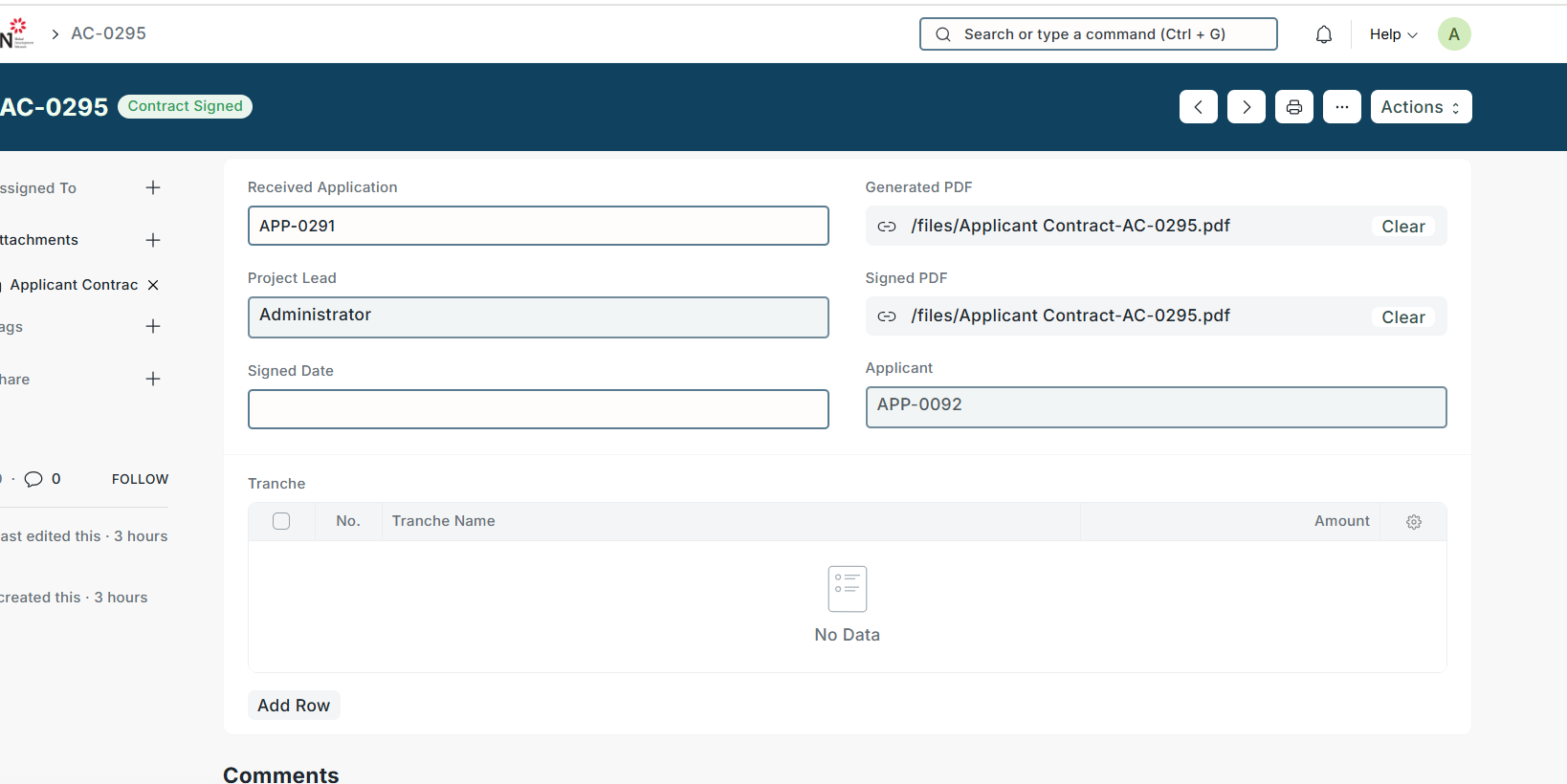
Contract
Contract template → generated PDF. Contains contract tranches (payment schedule). Contract status tracked; signed contract can be uploaded by grantee.
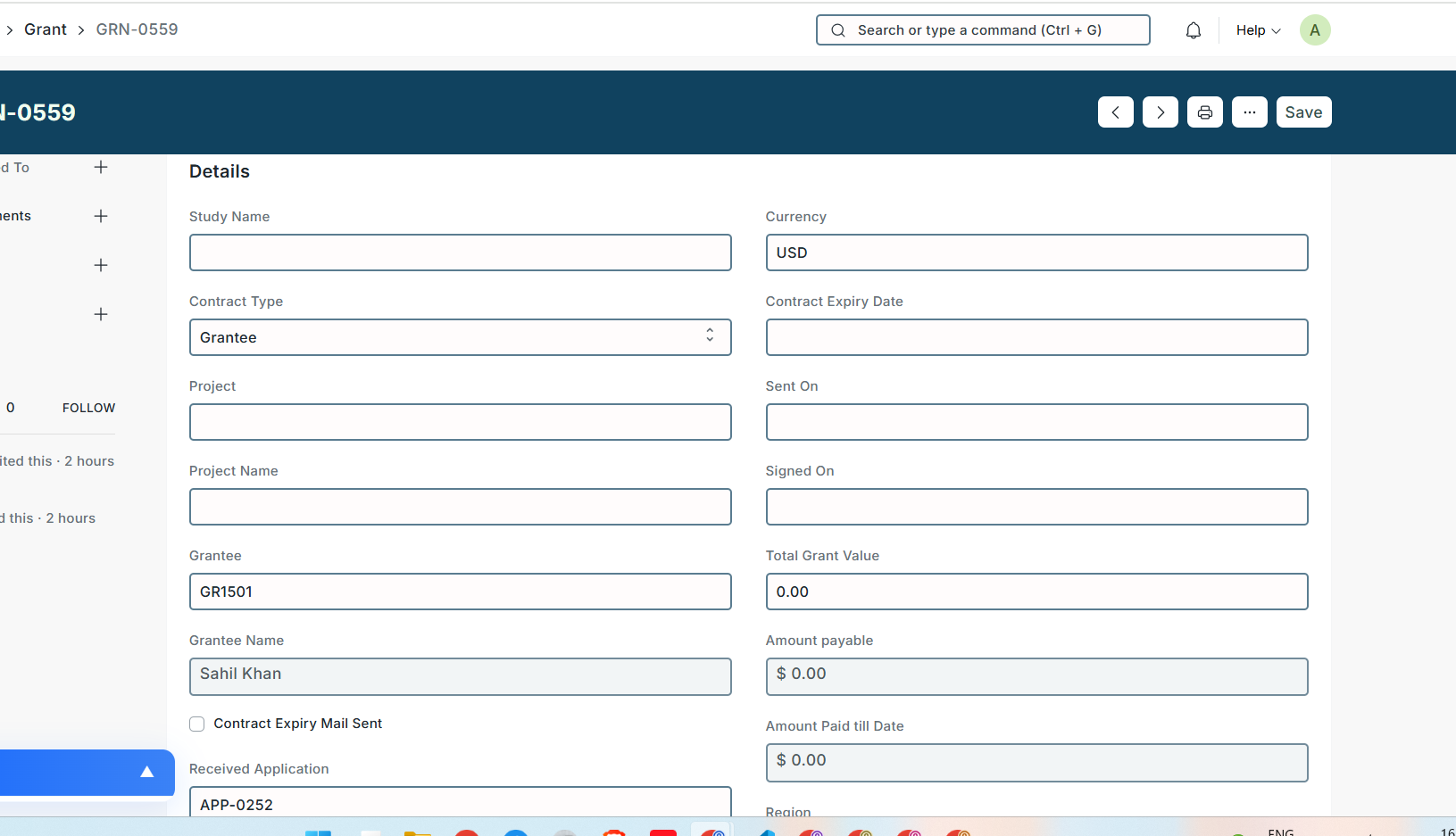
Grant
Created from approved application/contract. Tracks amount, currency, tranches, payments and finalization.
4. Business workflows (step-by-step)
Project & Activity creation
Project Lead creates a Project in portal/backend. Default activities are pulled from chosen
ActivityTemplate.Project Lead can add/remove activities in portal. Activities are split into months based on project start/end and per-activity monthly budgets.
Monthly budget lines are saved to backend and used for funding planning.
Donor & Fund → Tranches → Payments
Donor is created in Donor module.
Fund record is created (not an accounting document) with total committed amount and currency.
Developer / Admin defines fund terms (tranches). System auto-calculates tranche amounts using portion rules.
Finance creates Journal Entries when they want to reflect accounting movements. When a JE is created against a tranche, the tranche
paid_amountandbalance_amountget updated.Record Paymentbutton exists on Fund Term / Grant Term — it redirects to Payment Entry with prefilled fields. Payment Entry handles currency conversion and may auto-create JE lines for exchange gain/loss.
Grantee onboarding & Application flow (Phase 2)
Project Lead defines an
Application Template(dynamic sections and fields — text/select/number/bank details, etc.).Grantee registers on portal and fills application for a project. They can save draft or submit.
On submission, application becomes read-only to grantee. Project Lead assigns a Reviewer.
Reviewer logs in, reviews, adds comments & ratings. Based on review outcome, Project Lead marks
shortlistedorrejected.If shortlisted and approved, Project Lead generates Contract (PDF) from
Contract Templateand issues Grant. Grantee is notified; they can download and upload signed contract.
Grant & Payments to Grantee
Grant created with tranches; each tranche can be paid via
Record Payment(redirect to Payment Entry).Payment Entry again handles currency conversion and generates exchange gain/loss entries when needed.
Grant and related tranches update
paidandbalancefields.
5. Important UI behaviors & buttons to look for
Automatically pulled activities: When creating a project, ensure UI calls backend endpoint to create
Activityrecords from chosenActivityTemplate.Add/Remove activity on portal: Actions should validate allowed backend records — portal must only present selectable options configured in backend.
Month-wise budget grid: Renders dynamic columns for applicable months. Backend saves monthly budgets in a child table.
Record Paymentbutton: Prepares and redirects to Payment Entry page with relevant query params or a pre-populated form payload.Application
save as draftvssubmit: Draft permits editing; submission locks certain fields and triggers notifications & reviewer assignment.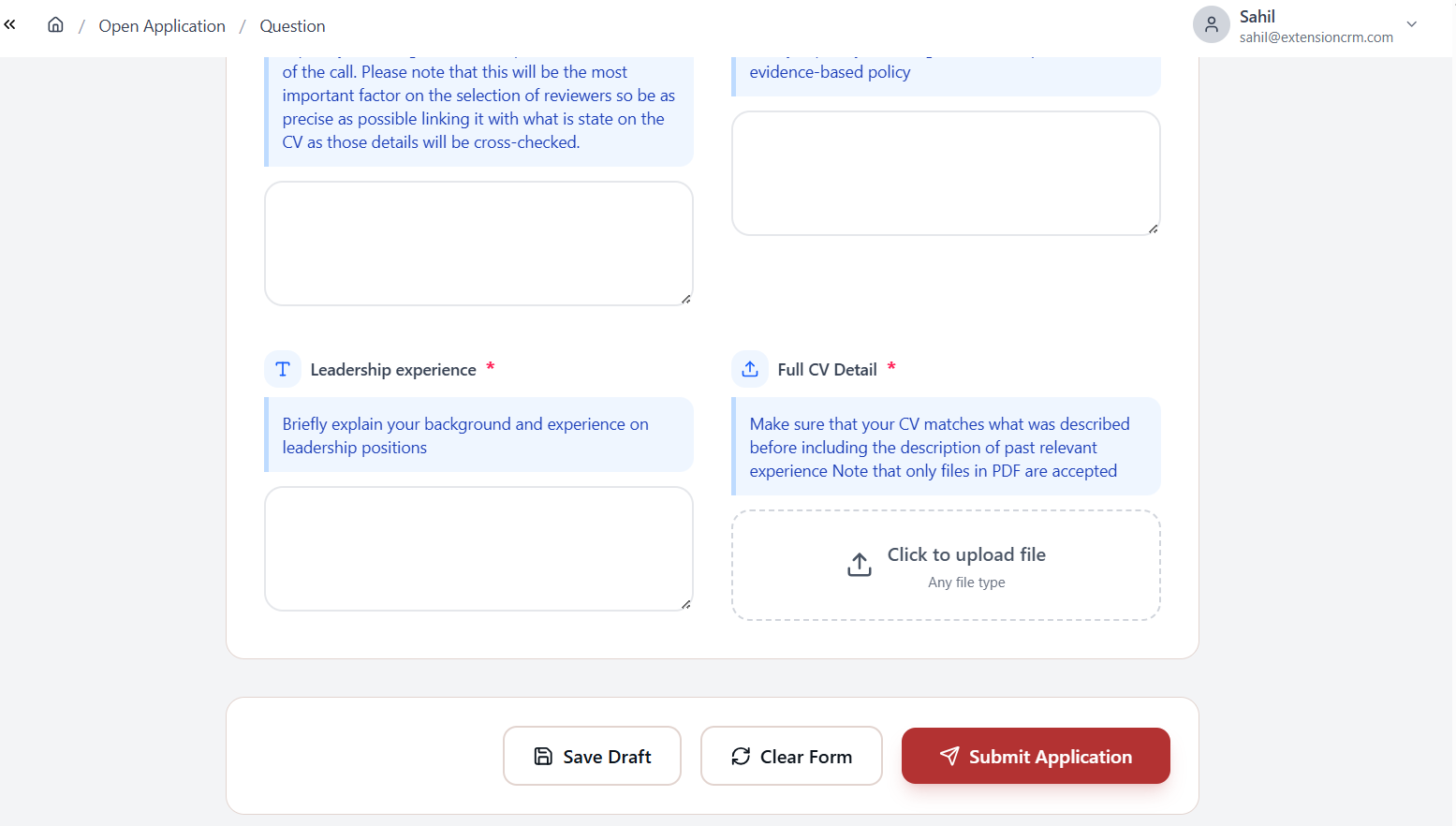
Generate Contract PDF: Triggers server-side template render and returns a PDF link shown on portal.
6. Currency & accounting rules (critical)
Base currency: USD. All stored totals are reflected in USD where required.
Conversion: If funding/payment arrives in another currency, the system converts to USD using stored conversion rates (look for scheduled job or API integration for rates).
Exchange gain/loss: When Payment Entry or Journal Entry lines use foreign currency, the system auto-creates exchange gain or loss Journal Entries when differences arise. The creation of these JEs is critical — test with multi-currency samples.
7. Testing & sample data (quick test cases)
Donor / Fund test
Donor A (EUR) commits 100,000 EUR as Fund for Project X. Create 4 tranches of 25% each. Create JE for first tranche: ensure fund.paid_amount updates to equivalent USD and balance reduces correctly.
Grantee application test
Create dynamic application with a
Bank Detailssection. Submit as grantee. Confirm bank details are copied to grantee profile and visible to Project Lead.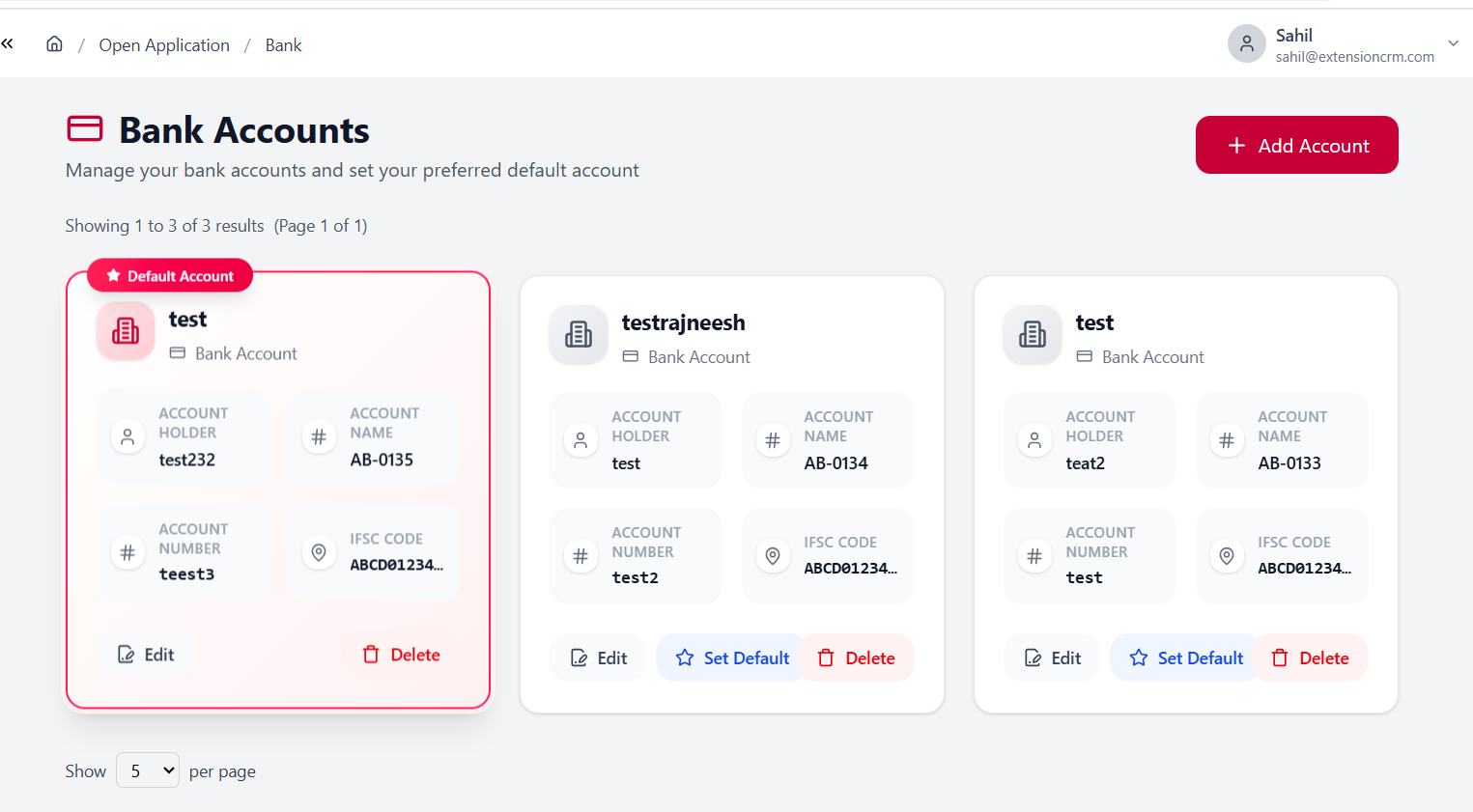
Payment & exchange
Payment in local currency with conversion rate different from recorded fund conversion → confirm exchange gain/loss JE lines created and posted.